How a Tomorrow’s Tail card is made
Your team uploads a current photo and a short note about a visible, temporary concern. The studio makes an AI illustration of how that same dog might look as it heals. You review the pair, then print or download a labeled card.
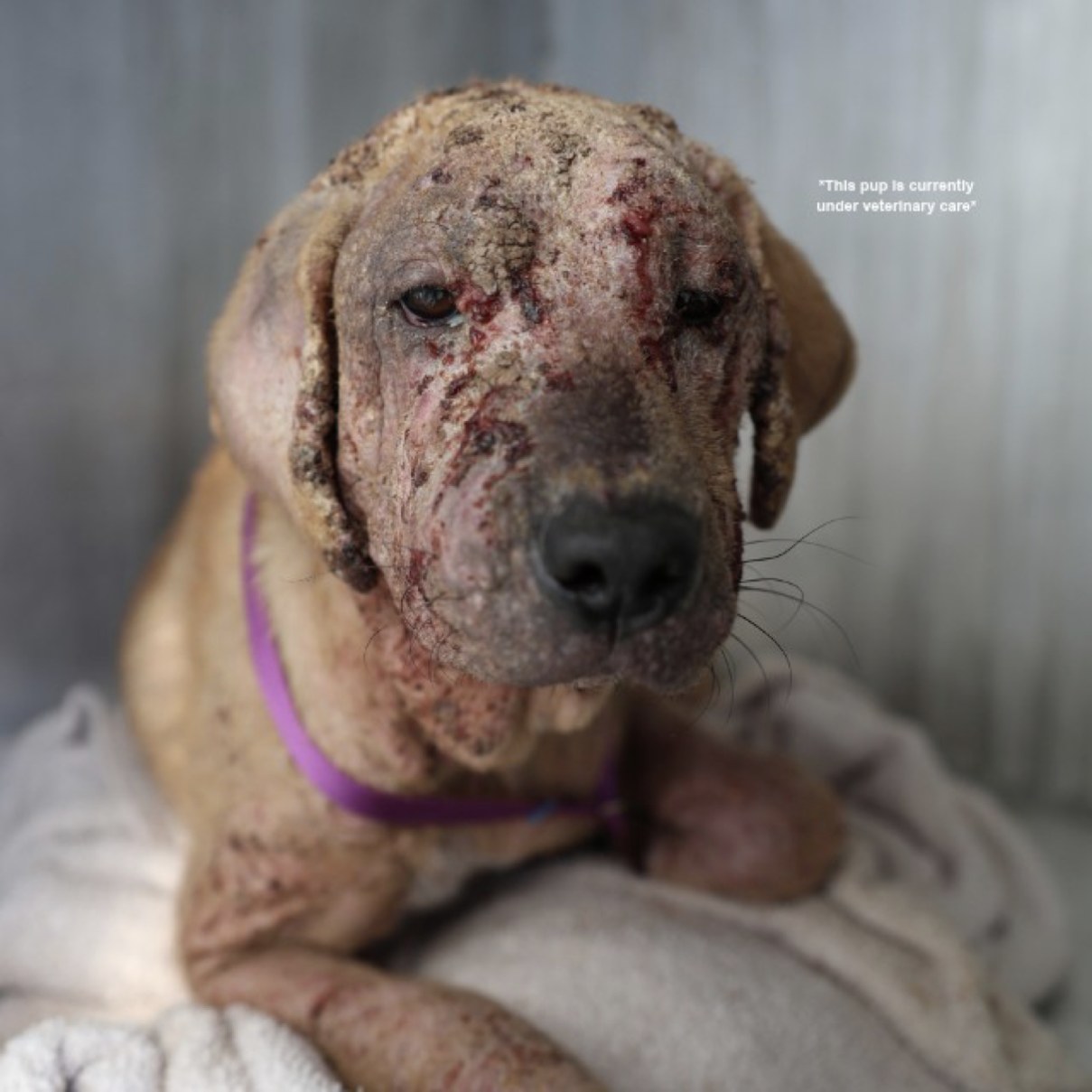 Shelter photo
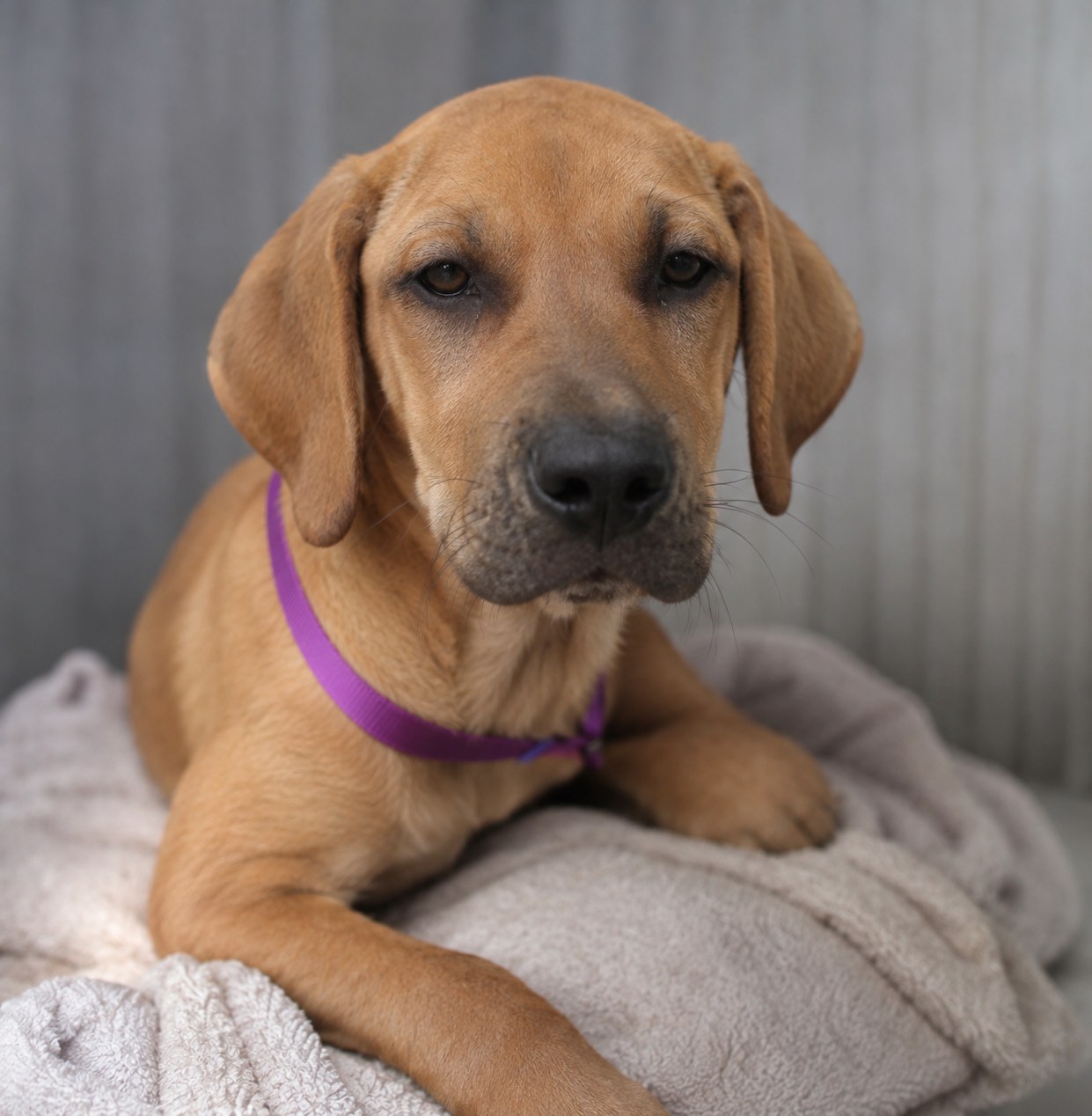 AI illustration
What the illustration changes, and what it keeps
The illustration only addresses the concern in your care note. Everything else about the dog should match the shelter photo.
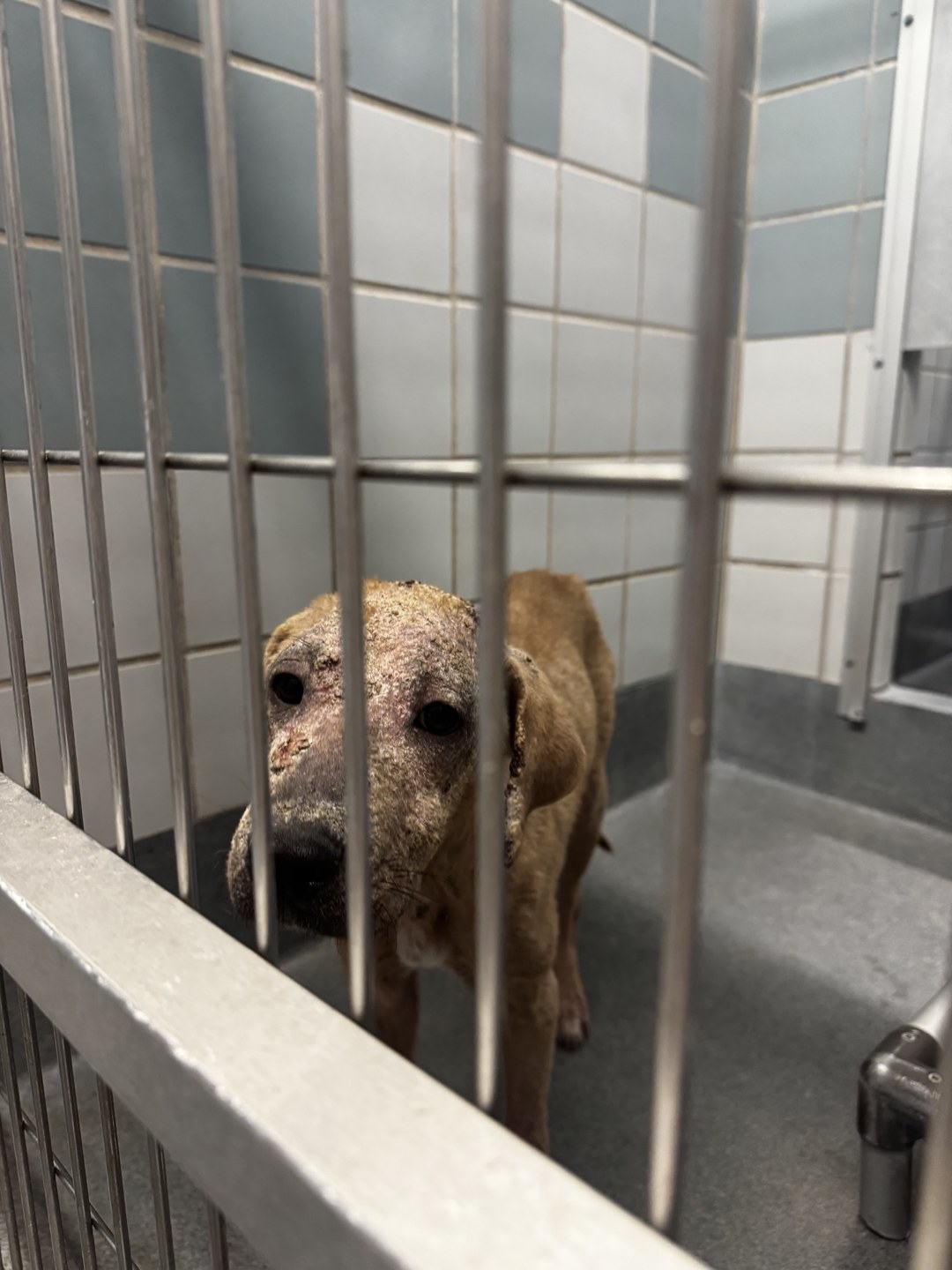 Shelter photo
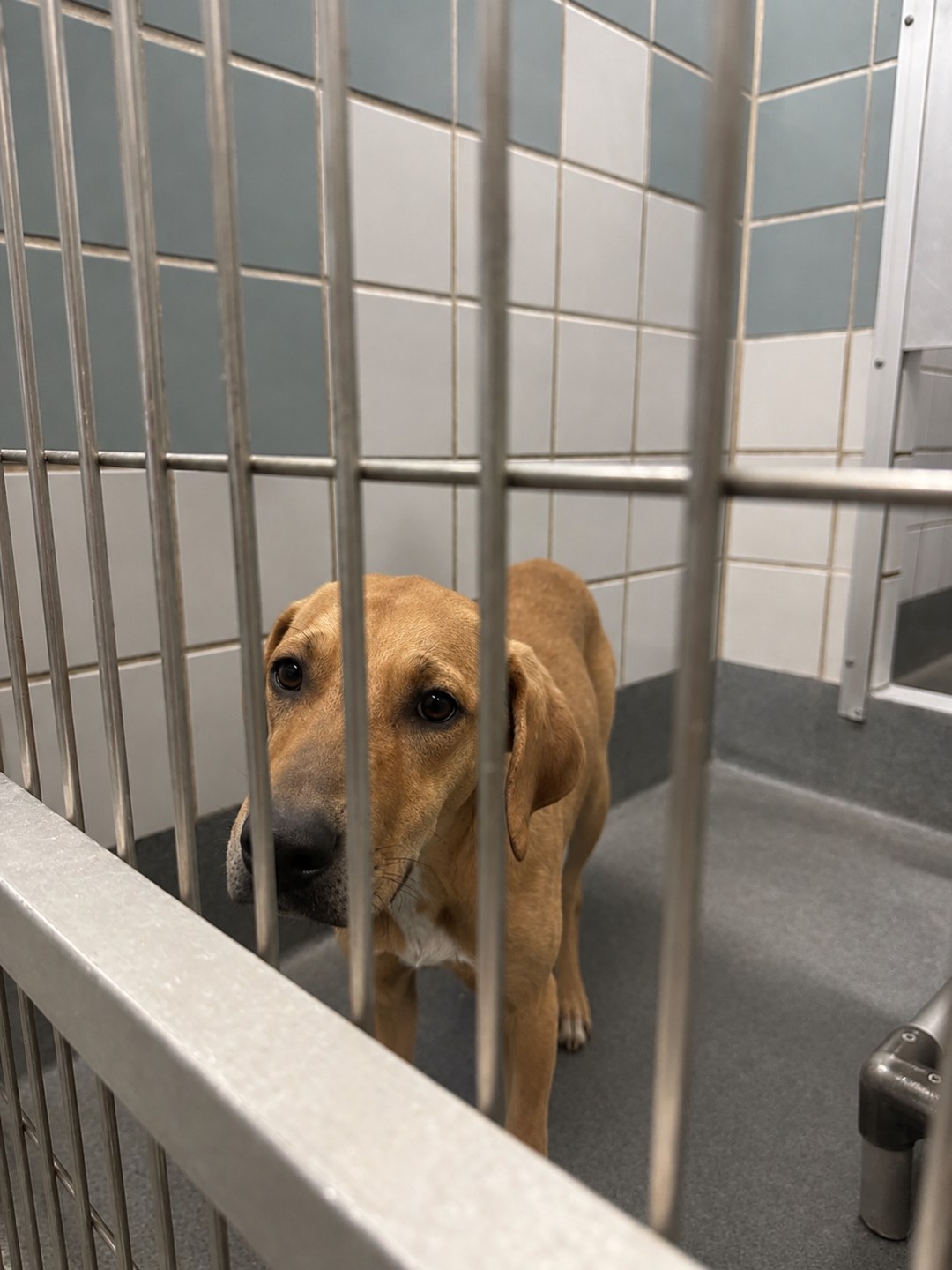 AI illustration
Changes
Only the visible, temporary concern in the care note. Here, the crusted, patchy skin on his face and head.
Stays the same
- Eyes and expression
- Ear shape and set
- Markings, like his chest patch
- Build, stance and age
- Scars and disabilities
- Setting, light and angle
If the dog looks different beyond the concern you described, revise the note or use the shelter photo alone.
Four steps, from photo to card
Everything happens in the shelter studio. Nothing is shared until your team chooses to download or print a card.
Step 1 of 4
Choose a photo
Log in or create a free shelter account. Choose a clear, current photo up to 25 MB. The studio resizes JPEG, PNG, WebP and browser-supported HEIC photos on your device.
- Pick an angle that shows the dog’s face.
- Make sure the area you want to illustrate is visible.
Step 2 of 4
Add a care note
Enter the dog’s name and describe the visible, temporary change. Say where it is and what the coat usually looks like there.
The note first appears on the card. In Edit card details you can correct or clear the family-facing text without another generation.
Shelter photo
Dog’s nameCedrickCare noteGenerate portraitPatchy coat on his face while his skin is treated.Step 3 of 4
Review the pair
Select Generate portrait. Compare the illustration with the original before anyone else sees it.
- Check the face, ears, markings and build.
- If the dog looks different beyond the concern you described, revise the note or use the shelter photo alone.
Shelter photo AI illustration- Face
- Ears
- Markings
- Build
Checked by staff against the shelter photo.
Step 4 of 4
Share the card
Open the pair in Saved portraits and choose a card template. The default pairs a classic postcard with a recovery plan.
Add an animal ID, a foster or adoption contact, and any estimates from your care team. Save your settings, then download a PNG or print. Both photos keep their full frame and labels.
Download PNG Print
When to make a portrait
A portrait helps when your care team can identify the concern as temporary. Otherwise, share the current photo and explain what you know.
Appropriate
- A clipped or shaved patch around a healing cut
- A healing scrape
- Coat loss while a dog is being treated for mange
- Any visible concern your care team identifies as temporary
Not appropriate
- A concern whose cause or course is uncertain. Share the current photo and explain what you know so far.
- Changing the dog’s age, build, permanent markings, scars or disabilities
- An illustration that looks different beyond the concern you described. Revise the note or use the shelter photo alone.
On every card you share
These hold for every template, in print and online.
- The AI illustration shows one possible appearance. It is not a promise or a prediction. Only a later photograph can document actual recovery.
- Use the current shelter photo as the main listing image. Check the listing platform’s rules before adding the pair as supporting material.
- Use your team’s current assessment for treatment needs, timing and foster support.
Where your photos and notes go
Nothing leaves your workspace until you generate a portrait.
-
Sent for illustration
When you generate a portrait, the studio sends the photo, the dog’s name and your notes to our AI image service.
-
Saved in your workspace
The resulting pair is saved in your shelter’s workspace, under Saved cards.
-
Shared by your staff
Staff review each pair, then choose which cards to download or print.
Connecting intake software? Read the developer overview.
Example cards
These are real cards, drawn by the same renderer the studio uses for downloads and printing.
Hover or tap the illustration label on a card to read how it explains the AI illustration to families. The studio has 17 templates in all.
Make your first card
Free for shelters. Daily generation limits apply.